Dashboard
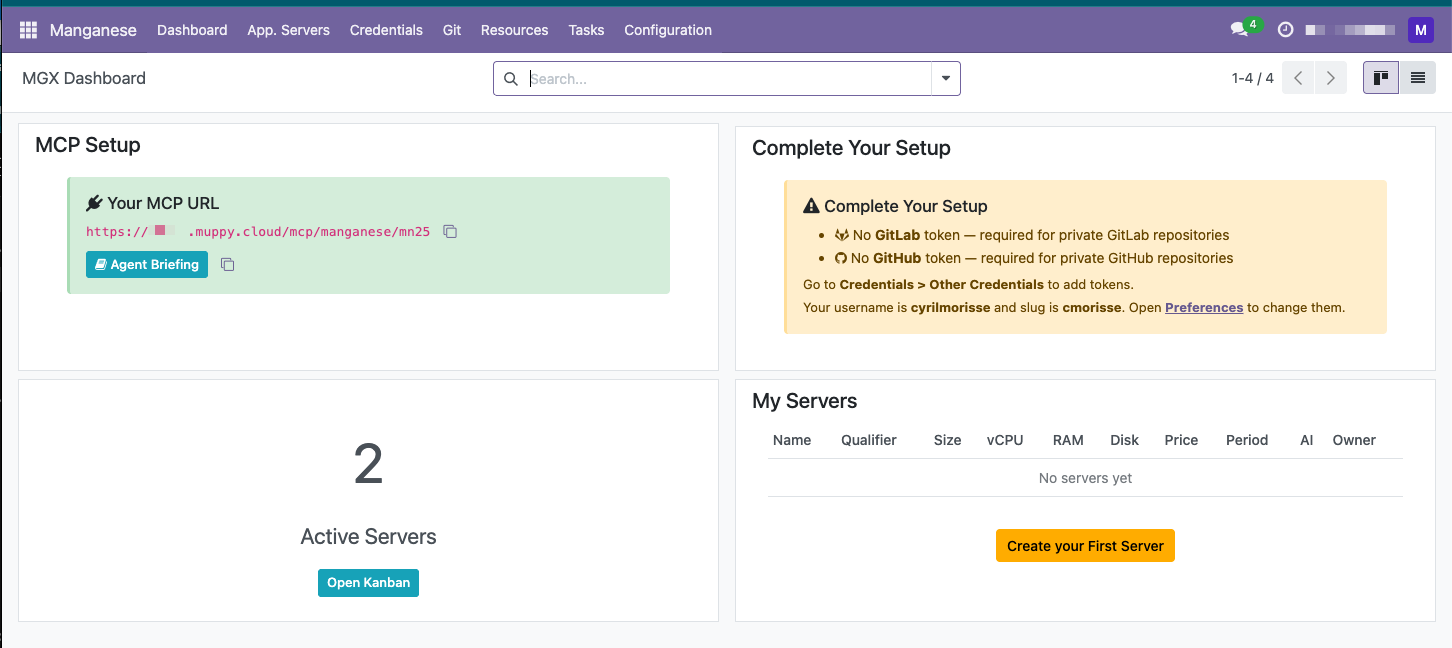
Manganese ▸ Dashboard is your home page. It shows four cards: Resources, MCP Setup, Git Tokens and Users.
Resources
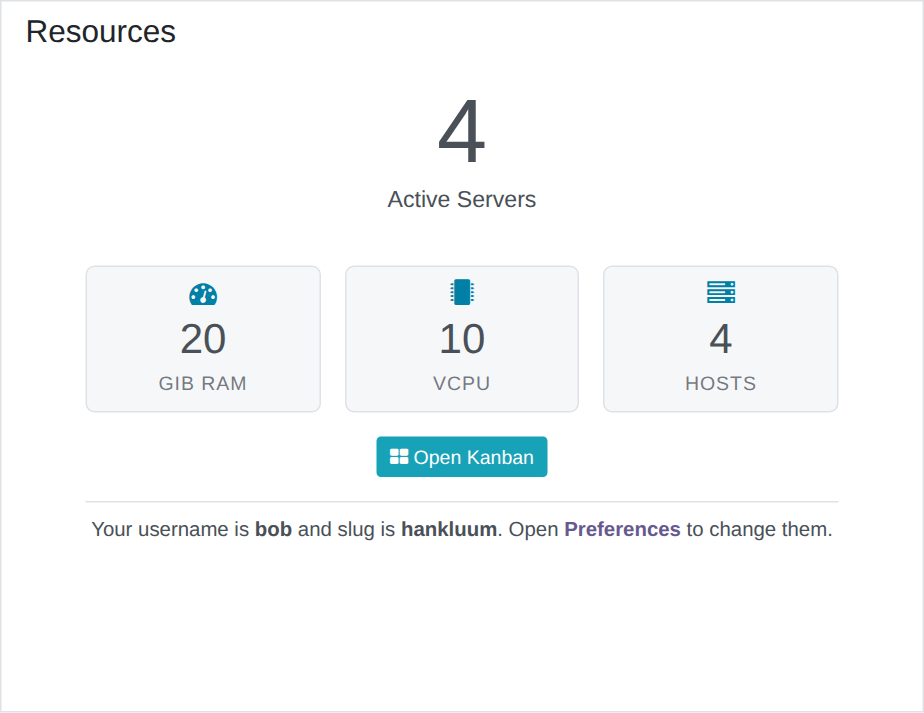
The card counts the provisioned App Servers you can see — yours, or the whole company's for a Manganese administrator. Then it gives the GiB of RAM, the vCPU and the hosts they run on, each host counted once.
- Open Kanban opens the App Servers, under their tiles.
- The last line gives your username and your slug, which name your App Servers. Open Preferences to change them.
MCP Setup
The card gives the URL of the Manganese MCP, and the Agent Briefing button: the page to give an AI agent before it plans an App Server — see Agent Briefing. The copy icon on the right of each one copies its address.
Before your first connection, the card reads Connect your AI Assistant. Configure your MCP client with the URL — see Connect Claude Desktop to the MCP.
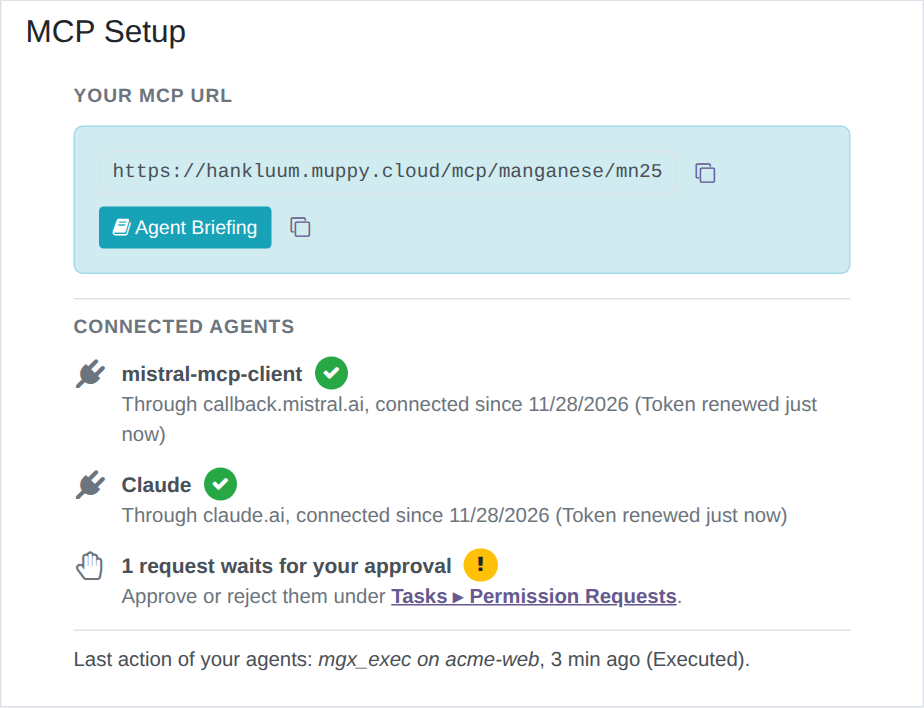
Once an agent is connected, Connected agents lists one row per agent:
- its name, the one its client registered: Claude for claude.ai, Claude Desktop and Claude Code;
- the site it signs in through (claude.ai, callback.mistral.ai, localhost), and the day it connected;
- when it last renewed its token. An agent renews it while it works, about once an hour.
A row turns orange when the agent's connection ends within 7 days. An agent left unused that long has to sign in again.
Under the agents:
- N requests wait for your approval when actions of your agents wait for you. Approve or reject them under Tasks ▸ Permission Requests.
- Last action of your agents gives the last method they called, on which record, how long ago, and its state.
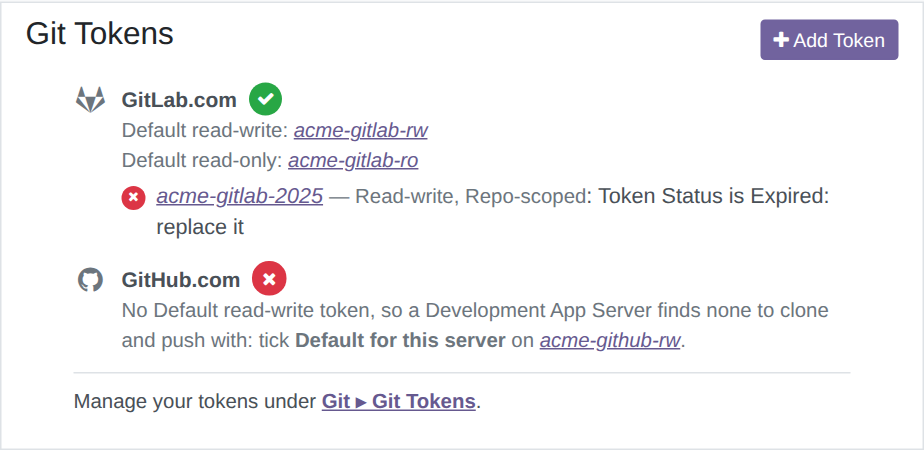
Git Tokens
The card has one row per forge you work with: the forges of your App Servers' repositories, and those of your Git Tokens.
- A green disc: a live, read-write token marked Default for this server serves the forge — yours, or one your company shares. The row names it, then the read-only Default when there is one.
- A red disc: no read-write Default serves the forge. The row says what to do: tick Default for this server on your token, or add one.
- Under a forge, each of your tokens to fix, with the reason: revoked, expired, no Token scope, or never checked.
App Servers to fix shows only when one of your App Servers has a git problem: the token it
clones with no longer serves, or it sits in .git/config without being read-only and
repo-scoped. Each row says what to press on the App Server.
Add Token, at the top right of the card, opens a new Git Token. Git ▸ Git Tokens, under the forges, opens their list. See Git Tokens.
Users
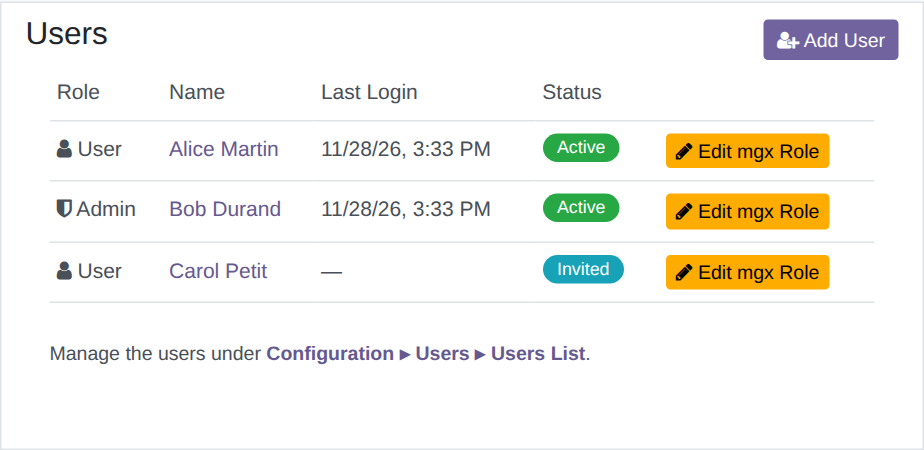
The card lists the Manganese users of your account:
- their role: User, Admin, or Super Admin for Support;
- their name and their last login;
- their status: Active, or Invited until their first login.
A Manganese administrator also:
- clicks a name to open the user;
- changes a role with Edit mgx Role, at the end of the row or in the header of the user's form. Support manages the role of a Super Admin;
- adds a user with Add User, at the top right of the card;
- opens every user under Configuration ▸ Users ▸ Users List.
Add User opens Create Manganese User. Choose the User Type first:
- Manganese User sees and manages their own resources only;
- Manganese Admin sees and manages the App Servers, Vaults and configurations of every user of the company.
Then give the User Name, the Email, which is also the login, and the Customer Slug. With Send Email Invitation on, the user receives an email to set their password. Click Create User. The dashboard reloads when the dialog closes: the new user shows at once, Invited.