Accessing Your App Server
An App Server gives you three ways in:
| Way in | Where on the form | What you need |
|---|---|---|
| the application | Access tab, Web Access group; the Open App button | a Sunray sign-in |
| the browser IDE (Code-Server) | Code-Server tab; the Open IDE button | a Sunray sign-in, then the IDE password |
| SSH from your own IDE | Access tab, SSH (with Tailscale) group | Tailscale on your machine and on the App Server, and your public key |
Sunray Zero Trust decides who reaches the application and the IDE. See Protect Your App Server with Sunray Zero Trust.
The shortcuts
The buttons at the top right of the form open each way in directly. A button shows only when its way in exists:
- Open App — the application.
- Open IDE — the browser IDE.
- SSH (Tailscale IPv4) — an
ssh://link, once Tailscale is detected.

The application
The Application URL, on the Access tab, is the address of your application: its public URL when it has one, its direct URL otherwise. Click it, or Open App.
The browser IDE
The Code-Server tab holds what you need to open the IDE:
- Code-Server URL — click it, or Open IDE.
- Code-Server Password (ReadOnly) — click the eye to show it, the copy icon to copy it. The IDE asks for it after the Sunray sign-in.

An App Server created without a Code Server shows the tab with the message This App Server has no Code Server.
The tab also holds Code-Server Allowed CIDRs, the addresses that reach the IDE without a Sunray sign-in — see Code-Server Allowed CIDRs.
SSH from your own IDE, through Tailscale
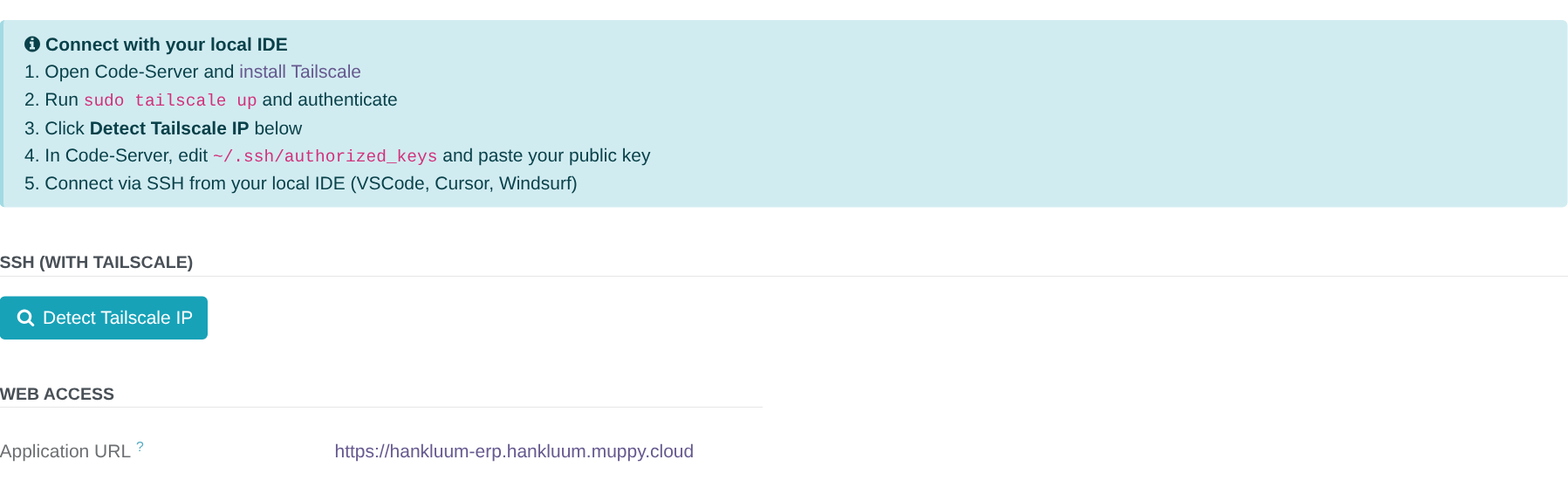
To work on your App Server from VS Code, Cursor or Windsurf, put it on your Tailscale network:
- Open the browser IDE and install Tailscale in its terminal.
- Run
sudo tailscale upand sign in to your Tailscale account. - On the Access tab, click Detect Tailscale IP.
- In the browser IDE, add your public key to
~/.ssh/authorized_keys. - Connect from your local IDE with the command or the SSH config the form now shows.
Once detected, the SSH (with Tailscale) group shows:
- Tailscale IPv4 and Tailscale IPv6 — the App Server's addresses on your tailnet.
- SSH (IPv4) and SSH (IPv6) — the command to copy.
- SSH Config — an entry to paste into
~/.ssh/config; Copy copies it. - Port Forward (local) and (remote) — fill them to add
-L local:localhost:remoteto the command, for instance to reach a service of the App Server from your browser. They are not saved: a page reload clears them.
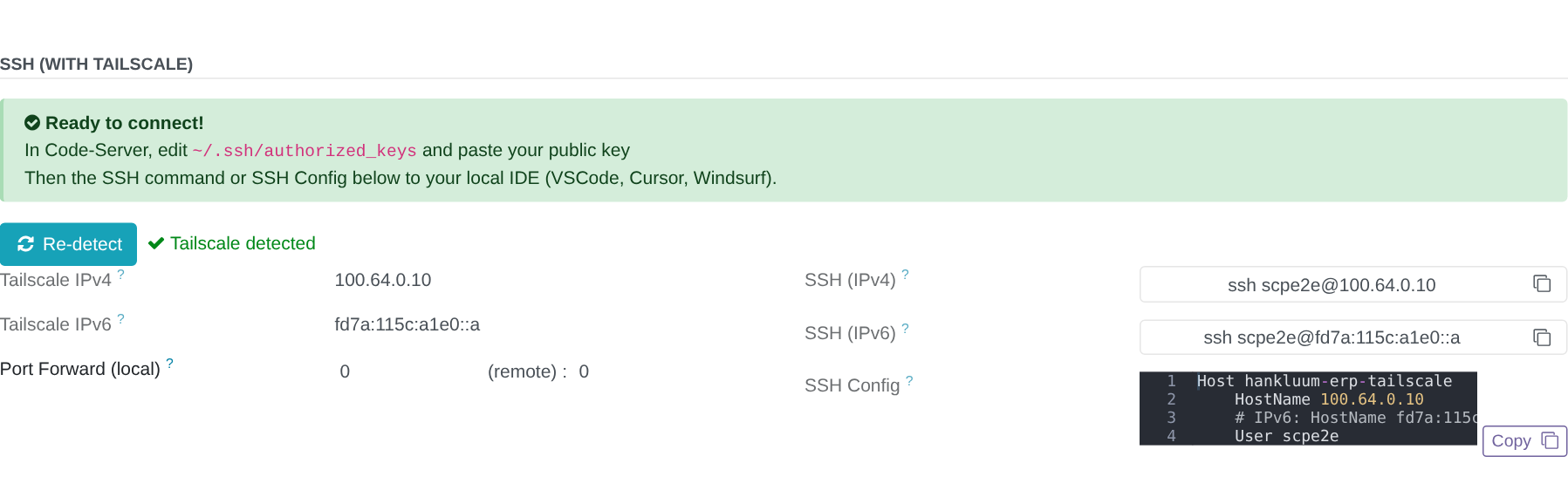
Click Re-detect when the App Server's Tailscale address changes, for instance after
you ran tailscale up again with another account.