Commission an OVH Instance
Commissioning creates one or more OVH Public Cloud instances and turns each into a fully managed Muppy Host. Muppy creates the instance on OVH, waits for it to boot, binds its public IP, waits for SSH, and (optionally) enrolls it — the result is a ==Managed== Host with no manual setup.
Commissioning creates real, billed instances
The wizard creates real OVH instances and starts billing. Each instance is provisioned, registered as a Host, and given an automatic decommission date.
1. Connect an OVH account
Commissioning uses an OVH Cloud Provider Account (an OVH API token).
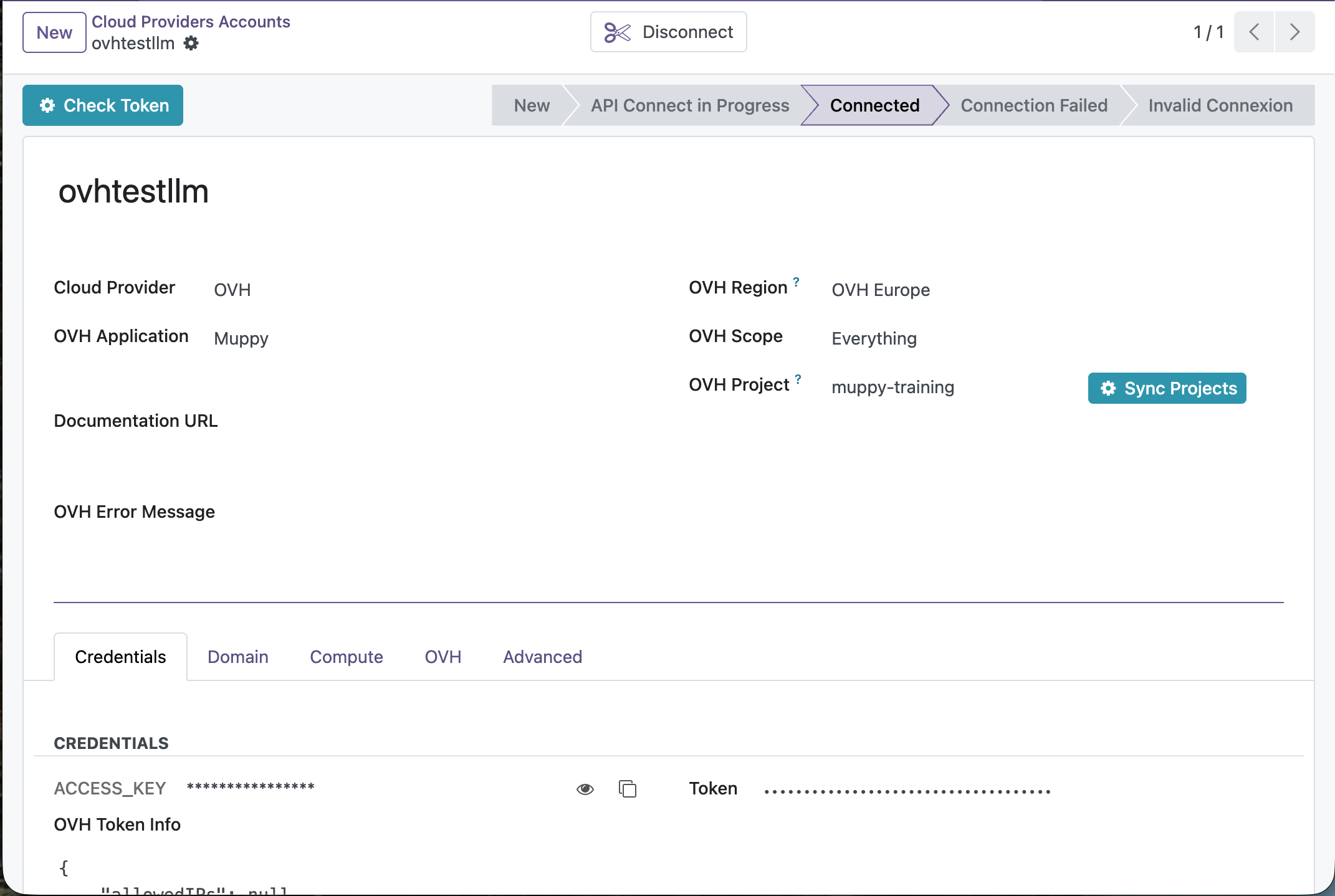
Open Muppy ▸ Configuration ▸ OVH ▸ Cloud Providers Accounts and open (or create) your account. Use Connect in the header, validate the rights at OVH, then Check Token, until the status bar shows ==Connected==. Disconnect revokes the account's key at OVH: every OVH call Muppy makes with it fails until the account is connected again.
2. Sync the account's catalog
A commission chooses among the account's catalog — its OVH projects, regions, flavors and images — which Muppy copies from OVH.
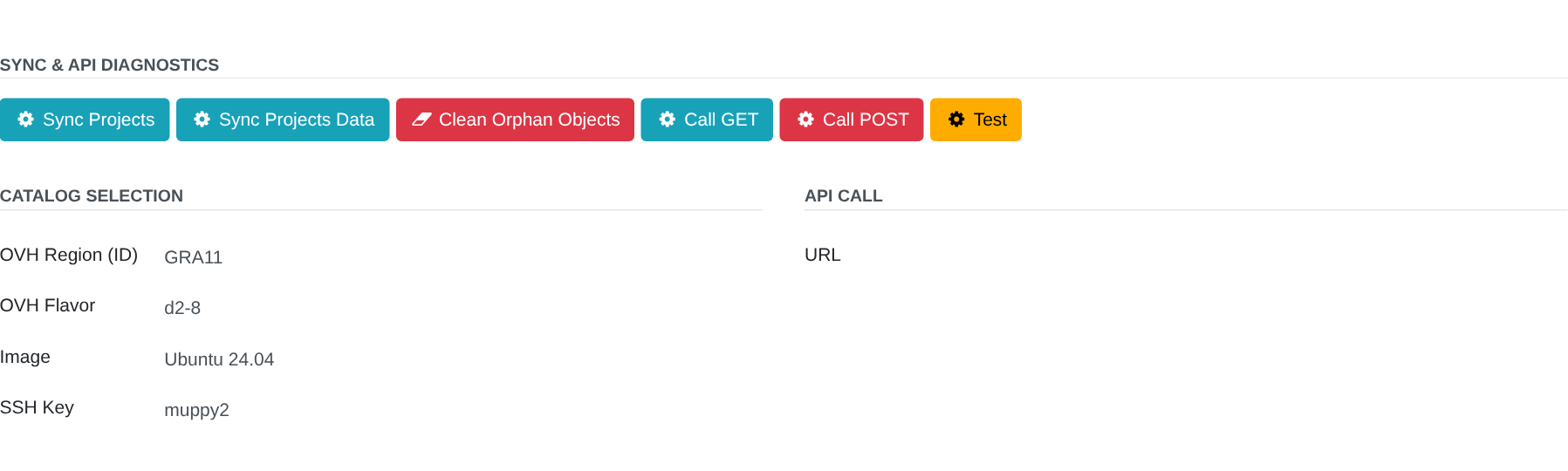
- On the account form's OVH tab, in the Sync & API Diagnostics group, click Sync Projects, then Sync Projects Data, to pull the OVH catalog into Muppy.
- Pick the account's OVH Project at the top of the form.
The Catalog Selection and API Call groups below the buttons serve Call GET and Call POST, which send a raw request to the OVH API: a diagnostic tool. Call POST requests four instances, which OVH bills, and asks for a confirmation first.
3. Commission with the wizard
Open Muppy ▸ Hosts ▸ Provisionning ▸ Commission OVH Public Cloud Instance(s).
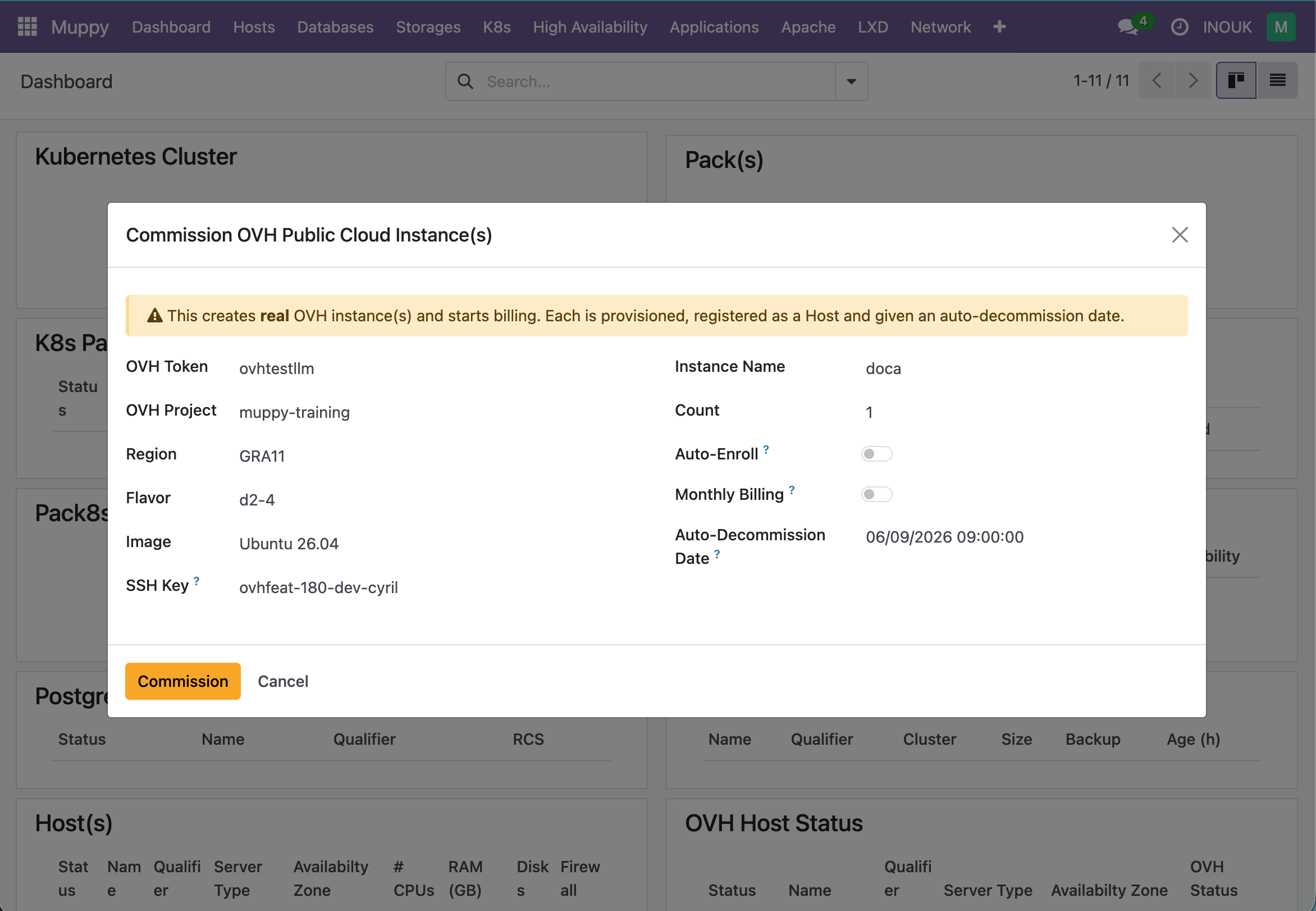
| Field | Meaning |
|---|---|
| OVH Token | The OVH account to use. Auto-selected when there is only one. |
| OVH Project / Region / Flavor / Image | The catalog selection, among the account's synced catalog. Region scopes Flavor and Image, so set it first. |
| SSH Key | The key the instance(s) trust: the Muppy key by default. Another key is a derogation — see below. A usable Muppy key is required whatever key you choose: the commission connects with it to the server that runs it. When there is none, or it lacks its public or its private key, a red banner at the top says why, and Commission is refused. A key without an OpenSSH public key, or with a private key Muppy cannot use, is refused the same way. |
| Instance Name (required) | The name of the instance(s) and Host(s). |
| Count | How many instances to create (default 1). |
| Auto-Enroll | When on, each Host is enrolled (apt upgrade, keys, reboot) once it is reachable over SSH, ending in the ==Managed== state. Off, and locked, with a public-only SSH key. |
| Monthly Billing | Bill the instance(s) monthly instead of hourly. |
| Auto-Decommission Date | Optional. When the Host(s) will be auto-decommissioned. Leave empty to use the default horizon. |
SSH Key — the instance trusts the Muppy key
A commissioned instance trusts the Muppy key, the SSH key Muppy connects with, and no other. Its private half never leaves Muppy: no agent ever handles it, and it is never copied outside Muppy. So every access to the instance goes through Muppy — its AI gate, its journal, and the enrollment, which installs the default keys your administrators declared. When the OVH project does not hold the key yet, the commission registers it there first, named after the key and its fingerprint.
Click Commission. The wizard closes and the work runs in the background.
Choosing another key: a derogation
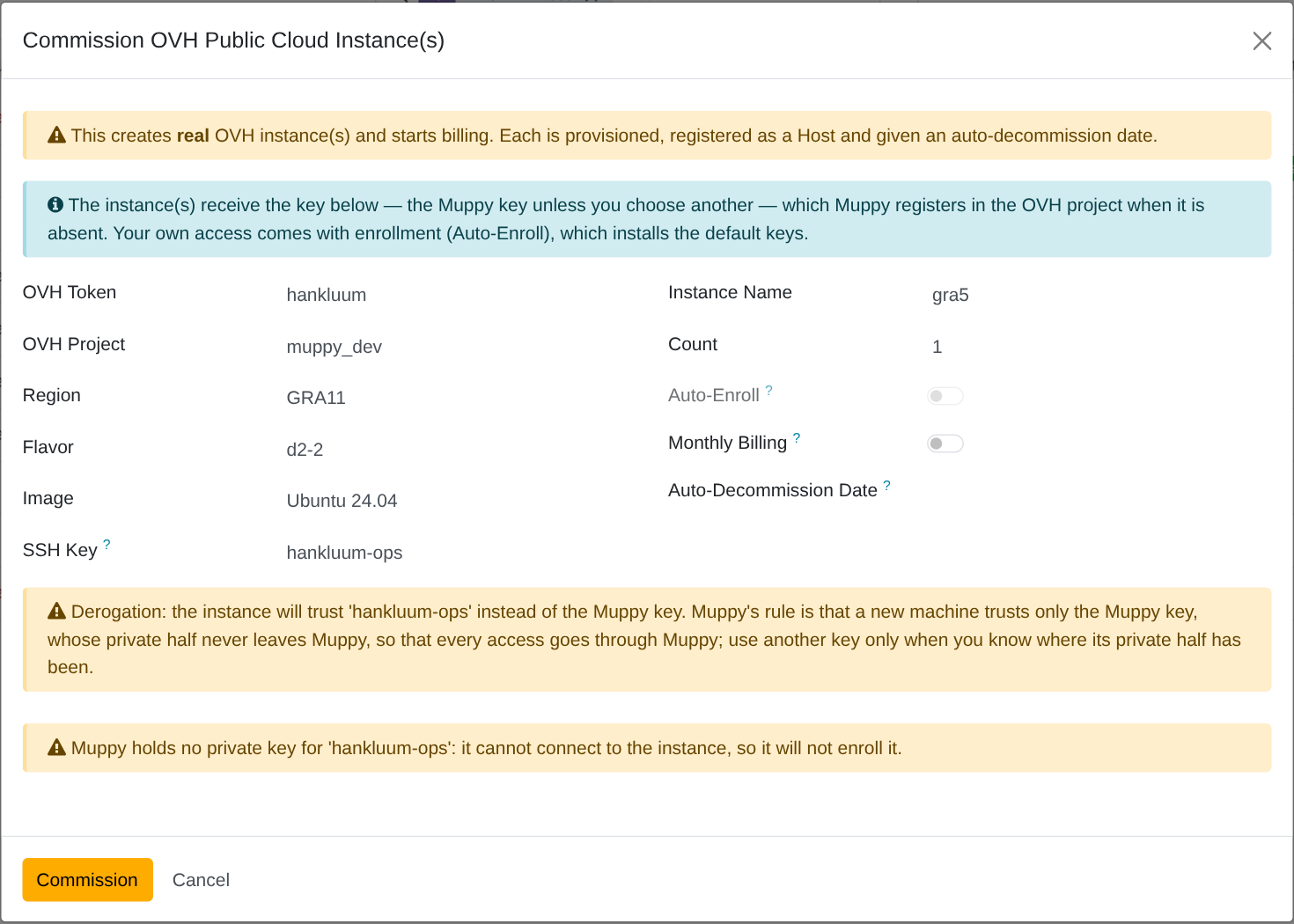
An operator may choose another key in SSH Key; an agent, through the MCP, never may. The wizard states the derogation in a warning: the instance will trust that key instead of the Muppy key. Choose one only when you know where its private half has been — whoever holds it reaches the instance without going through Muppy.
- A key whose private key Muppy holds works like the Muppy key. It becomes each new Host's Control SSH Key, and the commission waits for SSH and enrolls as usual. Muppy must be able to use that private key: an RSA or Ed25519 key with no passphrase.
- A public-only key — Muppy holds no private key for it — gives its owner access, but Muppy cannot connect. A second warning says so, and Auto-Enroll turns off and stays off. The commission creates, registers and dates the instance and binds its IP, then skips the SSH wait and the enrollment. The background job still ends successfully; its result says why those steps were skipped.
What happens after you click Commission
Commissioning runs as a background job, in which Muppy:
- Creates the instance(s) on OVH with the SSH key — the Muppy key unless you chose another — registered in the project first when absent.
- Registers every instance as a Host (still booting) and sets its auto-decommission date, saved at once — a safety net: each instance OVH bills is a tracked, dated Host before anything else can fail.
- Then, Host by Host, waits until the instance is ACTIVE.
- Binds its public IP.
- Waits until it is reachable over SSH.
- If Auto-Enroll is on, enrolls it → the Host reaches ==Managed==.
With a public-only SSH key, steps 5 and 6 are skipped.
A Host that fails one of steps 3 to 6 does not stop the others. The job then ends in failure and names each failed Host. A failed Host keeps its auto-decommission date; its instance stays billed until it is decommissioned.
This runs in the background
Commissioning is asynchronous — the wizard returns immediately and the work continues as a background task; the Host appears and progresses on its own.
Following progress
Track the job under Muppy ▸ Tasks (or Qs), or watch the new Host on its form: it appears as soon as it is registered (step 2) and advances ==New== → ==Work In Progress== → ==Managed==.
4. Commission through the MCP
An AI agent connected to the Muppy MCP commissions an instance with one call, create_ovh_instance on the OVH account — see Creating an OVH instance for the call and its parameters. It is this wizard with every costly choice taken away:
- one instance per call, never a count;
- hourly billing, never monthly: a monthly instance is billed for the month whatever its date;
- a decommission date always given, in the future and at most the Manganese Ceiling ahead (90 days unless changed in Settings ▸ Manganese ▸ App Server Lifetime ▸ Manganese Ceiling (days));
- always in the background: the call returns its task, which the agent follows.
The name of an instance commissioned this way is one DNS label: lowercase letters, digits and -, starting with a letter, 63 characters at most; no Host may carry it already, and no commission of that name may be queued or running. The instance always receives the Muppy key: the call takes no SSH key, so an agent cannot derogate. The call refuses before anything reaches OVH when there is no usable Muppy key, or when a catalog object belongs to another account or project, is not offered in the region, or is no longer in the catalog.
The account's AI gate
The agent's call is judged on the OVH account's AI Managed switch, shown under OVH Application on the account form:
- AI Managed on: the call runs at once;
- off — the state of every account until someone opens it: the call becomes a permission request, and nothing is created until you approve it. The request names the project, the region, the flavor with its vCPU, RAM and disk, the image, the Muppy key the instance receives and the date, and says one instance, billed hourly;
- Grant for Duration... next to the switch opens the account for a chosen time, and Revoke closes it again.
5. Host lifecycle — auto-decommission
Every commissioned Host is given an Auto-Decommission Date: the one the wizard was given, or a default horizon — 30 days unless your administrator changes it — when it was left empty; the one the agent gave, through the MCP. This is a safety net for ephemeral cloud hosts, so they don't linger and keep billing.
On the Host form, the Lifecycle tab (shown for cloud / linked hosts) offers:
- Manage Decommission — schedule, extend, choose or clear the auto-decommission date, in one dialog.
- Decommission Now — decommission the Host immediately.
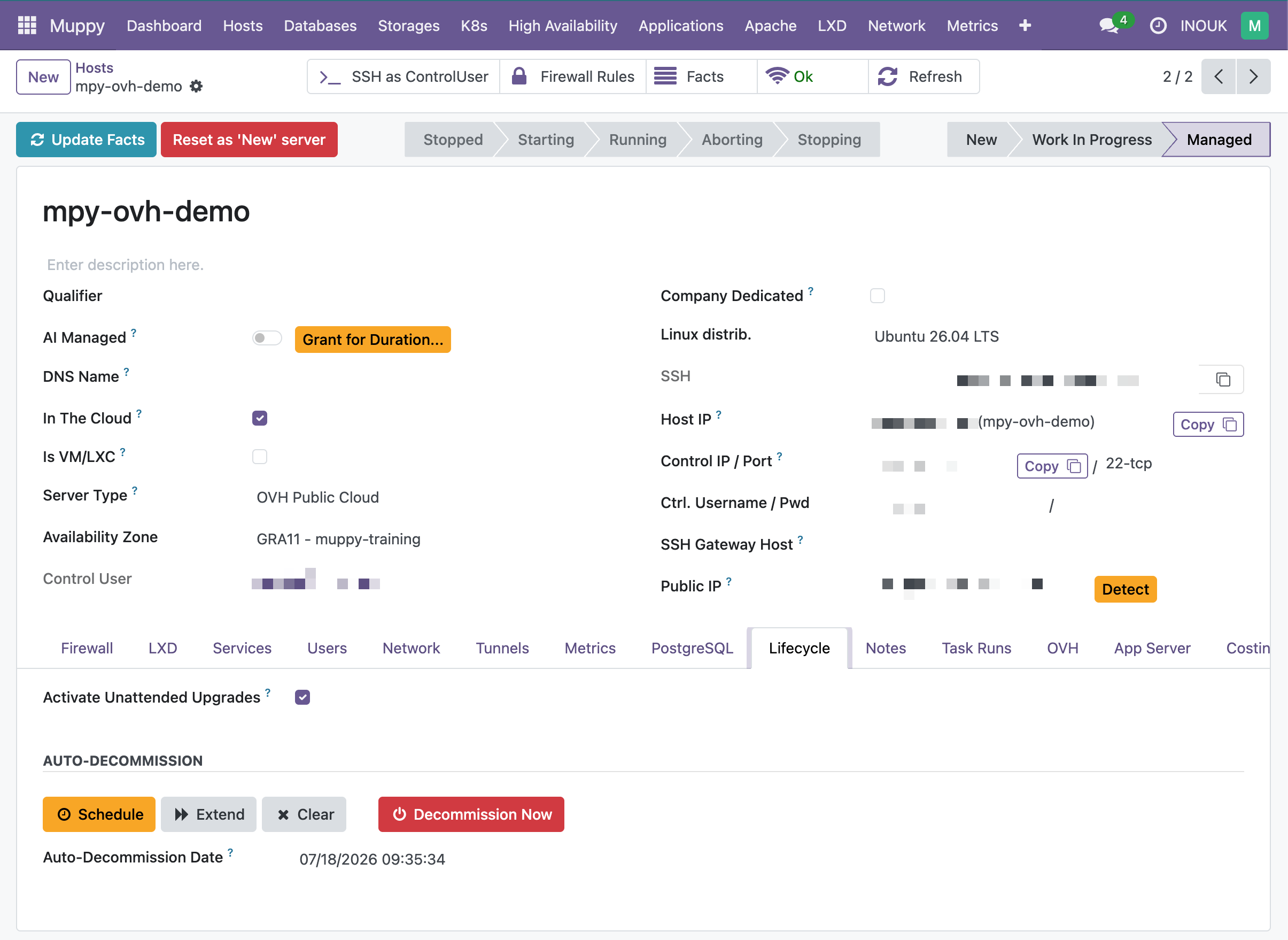
By default the scheduled date is not swept automatically (the housekeeping job is disabled unless an administrator enables it) — the date mainly documents intent and supports manual cleanup. Decommission Now always acts immediately.
Decommission deletes the OVH instance
Decommissioning an OVH Host deletes the underlying OVH instance — the VM is destroyed and billing stops — and removes the Host record from Muppy. This cannot be undone. (If the instance was already deleted on OVH, decommission still completes and just removes the record.)