Hosts
Hosts are the physical servers, virtual machines, and LXC containers managed by Muppy. They are involved in virtually every Muppy operation that touches a server.
Where to find Hosts
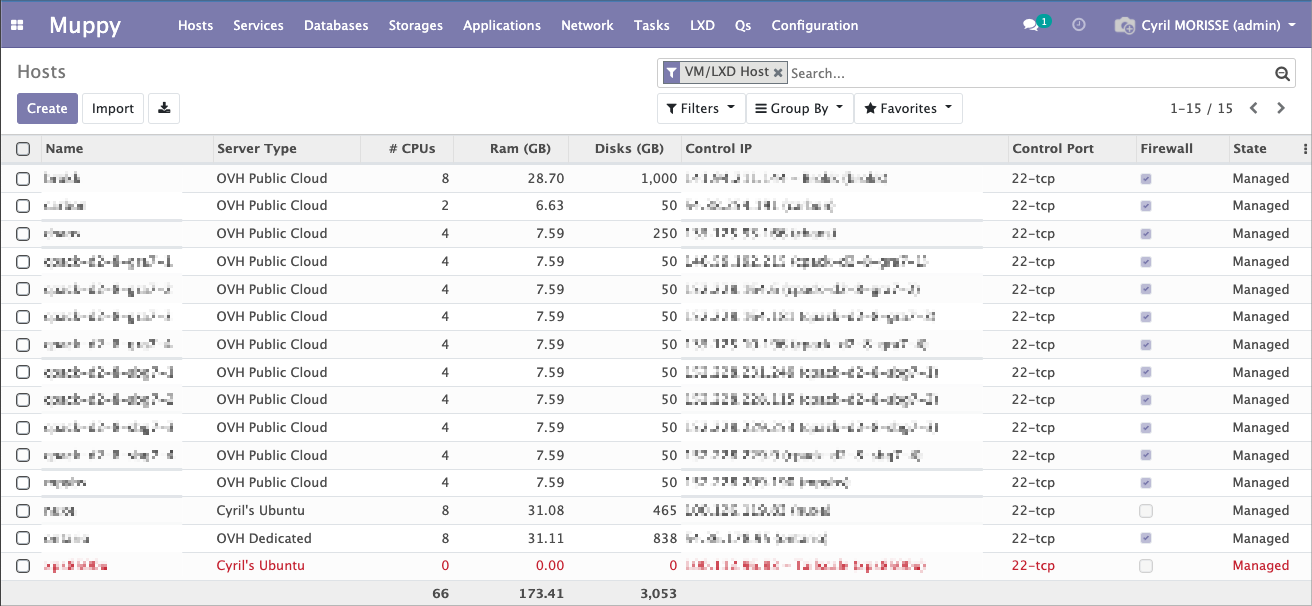
Hosts are organized under the Muppy ▸ Hosts menu, which exposes several views of the same mpy.host model:
| Menu entry | What it shows |
|---|---|
| Hosts | Non-production Hosts (every Host whose Qualifier's effective category is not Production, plus Hosts with no Qualifier). Defaults to physical/cloud servers (non-VM). |
| Hosts - Production | Hosts whose Qualifier has Production as its effective category. |
| LXC Containers | Hosts flagged as a VM / LXC container (Is VM/LXC). |
| Provisionning ▸ Enroll Host | Opens the Enrollment Wizard used to create and enroll a new Host. |
Info
The same Host can appear in different lists depending on its Qualifier and whether it is a VM/LXC. The lists are just filtered views — there is a single underlying Host record.
Creation and enrollment
Before it can be used with Muppy, a Host must first be created (its connection details are recorded) and then enrolled (Muppy configures it so it is ready to be managed).
The recommended path is the Enrollment Wizard (Hosts ▸ Provisionning ▸ Enroll Host), a 3-step guided flow that checks connectivity, prepares a dedicated control user, and launches enrollment in one go. See Host Creation and Enrollment.
Tip
Hosts can also be imported automatically from a supported Cloud Provider (for example OVH), in which case much of the creation step is filled in for you.
After enrollment
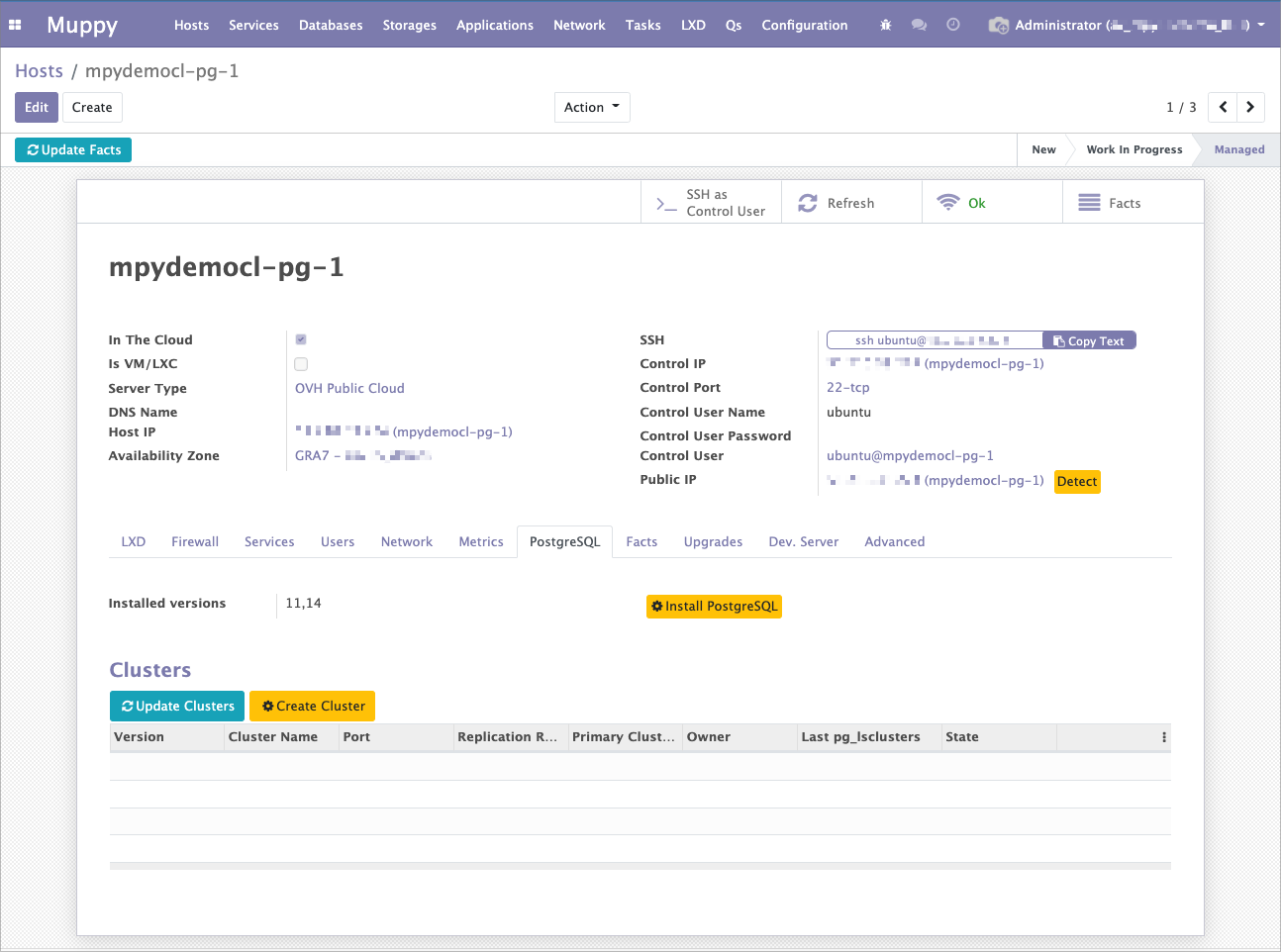
Once enrolled, a Host moves to the ==Managed== state and its form view exposes the following tabs:
- Firewall — UFW status, default and custom rules, CIDR dynamic ranges. See Firewall UFW.
- Services — systemd units running on the Host.
- Users — the Linux users Muppy knows about on the Host, with SSH helpers.
- Network — network interfaces, exposed ports, and raw
ip --json addrdata. - Metrics — collected host metrics (disk, partitions, benchmarks).
- Lifecycle — auto-decommission scheduling and manual decommission. See Auto-decommission.
A few additional tabs (Notes, Task Runs, and an Advanced tab for technical users) are also available. Notes is written in Markdown; the selector above its editor changes the editor's theme, and this browser remembers the choice for every Markdown editor that offers the selector — Muppy Default for this form gives the form's theme back. The App Definition notes offer the same selector.
Auto-decommission
A Host can carry an Auto-Decommission Date: the date at which Muppy destroys it. It is how a development or test environment comes to an end without anyone having to remember it.
What a decommission destroys
A decommission applies to two kinds of Hosts:
| Host | What the decommission destroys |
|---|---|
| A cloud instance Muppy owns (Is Linked), such as an OVH instance | The instance, at its provider — see Commission an Instance |
| A container or a VM Muppy created on an LXD host | The container or VM, deleted on its LXD host |
A decommission runs in three steps. When an App Server is to be deprovisioned, a stopped container is started first: the deprovisioning works over SSH. A stopped container that also carries a Production App Server is never started, since its Production App Server would start with it: nothing is deprovisioned, it keeps its date, and every Muppy Administrator gets a sticky alert listing its App Servers and the two ways out — start it yourself, then decommission it again (its other App Servers are deprovisioned, and the Host and its machine kept), or clear the date with Manage Decommission.
- Each App Server on the Host, except the Production ones, goes through Deprovision Server with five of its six options checked: Remove Systemd Units, Remove Reverse Proxy Apps (its Traefik applications and their DNS records), Remove Code Server (unchecked when a kept Production App Server shares that Code Server), Remove Database (its databases and PostgreSQL roles) and Delete Dev Server object. Deprovision Server stays unchecked: the machine is destroyed once, in the next step.
- The machine is destroyed, as the table above says — unless something still depends on it once the deprovisioning ends: a Production App Server, any App Server still on the Host, a container or VM it now runs, or an App Server of another host now using its PostgreSQL cluster or Traefik server. The Host is then kept, with its machine, and its date is cleared; the task's result says why.
- The Host record is deleted.
The App Servers go first because destroying the machine alone would leave their databases, Traefik applications and DNS records in service. App Server Lifetime gives the same steps from the App Server's side.
The localhost Host is never decommissioned. On a Host that is neither a cloud instance Muppy owns nor a container or VM it created, the date has no effect.
Production
A Qualifier is Production when its effective category is Production: the category it is based on, or its own when it is based on none. A Qualifier of category Production based on Staging is not Production; one of category Staging based on Production is. The deletion guard of a Host reads it the same way.
- A Production App Server is never deprovisioned by a decommission. The other App Servers of its Host are deprovisioned on the date all the same; the Host and its machine are kept while a Production App Server remains on it, and the Host's date is cleared; Date Changed By then names the user the decommission ran as. The task's result names the App Servers deprovisioned and the Production ones kept.
- A Host whose own Qualifier is Production is never decommissioned: its Lifecycle tab offers no Decommission Now, the sweep passes it by, the Manage Decommission dialog refuses to date it, and it shows no Days Left capsule.
- A Production Host that carries a date is an error to correct, and Muppy says so: every Muppy Administrator gets a sticky error notification, with a button opening the Host, asking to clear the date with Manage Decommission, and to change the qualifier only after: a Host past its date is decommissioned at the next sweep once it is no longer Production. It goes when the sweep finds the Host due — once per date, again when the date or the qualifier changes — and each time someone tries Decommission Now on it, or opens Manage Decommission on it without being allowed to clear the date, naming who. The date shows on the Host's Lifecycle tab, where Manage Decommission lets a Muppy user clear it — the one gesture it offers on such a Host.
A Host that still runs containers or VMs — an LXD host that is itself a cloud instance Muppy owns — is refused until they are gone: decommission its containers and VMs first, since destroying the Host would destroy them and leave the databases, Traefik applications and DNS records of their App Servers in service. A Host whose PostgreSQL cluster or Traefik server serves App Servers placed on other Hosts is refused the same way, naming them: deleting the Host would delete that cluster or Traefik server, and those App Servers' databases or routing with it — move them first.
A decommission cannot be undone
The machine, and the databases and DNS records of every App Server deprovisioned, are destroyed. Back up first anything you want to keep.
The default date
The date is set when the Host is created, from the Qualifier of the App Server it is created for:
| Qualifier category | Default Auto-Decommission Date |
|---|---|
| Development, Test | Today plus the default horizon — 30 days unless your administrator changes it |
| Any other (Staging, Demonstration, Production, …) | None: the Host is kept until someone dates it |
The category read is the Qualifier's effective one: a Qualifier based on another category counts as that category — Demo counts as Staging.
The Create App Server wizard shows the date its qualifier proposes, and proposes it again each time the qualifier changes. A Muppy user may change it or clear it; a Manganese user reads the date the qualifier gives. Through the MCP, mgx_create_app_server takes an optional decommission_date and applies the qualifier's date when none is given.
The date lands on the container the creation provisions. An App Server placed on an existing Host leaves that Host's date as it is. A Production Qualifier takes no date: the Create App Server wizard hides it, and a date given with one is refused before anything is created — by the App Server creation, mgx_create_app_server included, and by the LXC Create form and lxc_commission.
The default horizon
Settings ▸ Muppy Core ▸ Auto-Decommission ▸ Default Horizon (days) sets the horizon, 30 days by default. It is also the step of Schedule and Extend, two gestures of the Manage Decommission dialog (see Changing the date). A change applies to the Hosts created afterwards: the dates already set stay as they are.
Changing the date
The Manage Decommission button opens a dialog on the Host. It sits on the Lifecycle tab of the Host form, and in the header of the App Server form — the Muppy form and the Manganese form alike — where it opens the dialog on the Host the App Server runs on. The dialog offers four gestures:
| Gesture | What it does |
|---|---|
| Schedule | Offered when the Host has no date: dates it the default horizon from now |
| Extend | Pushes the date by the default horizon, from the current date — or from now when the current date has passed |
| Set Date | Gives the Host the New Date chosen, which must be in the future |
| Clear | Removes the date: the Host is kept until someone dates it again |
A Muppy user changes the date of any Host Muppy may decommission, with no limit, and may clear it. A Manganese user is bound by a ceiling and clears the date only when an administrator allows it — see App Server Lifetime.
The Host records who changed the date and when: Date Changed By and Date Changed At, on its Lifecycle tab, under the date. Both stay empty while the date is the one the Host received at its creation.
Changing the Qualifier of an App Server does not change the date of its Host: the date is decided once, at creation. The App Server form warns about it when the Qualifier changes; moved to Production, it adds that the App Server is never deprovisioned by that date, and that the Host is kept while a Production App Server remains on it.
Days Left
A dated Host, unless its Qualifier is Production, shows a Days Left capsule beside its date on the Lifecycle tab, and as a column of the Hosts and LXC lists. App Servers show the capsule of their Host, under their Qualifier and in their lists. It reads 12 days beyond the last 24 hours, 7 h within them, < 1 h in the last hour, and Due once the date is reached; both counts round up.
| Colour | When |
|---|---|
| Green | More time left than the first reminder's delay — 7 days by default |
| Orange | Between the first and the last reminder's delays |
| Red | Within the last reminder's delay — 1 day by default — and once the date is reached |
Reminders
Muppy emails two reminders before a Host's date, at the delays set in Settings ▸ Muppy Core ▸ Auto-Decommission:
| Setting | Default | Also sets |
|---|---|---|
| First Reminder (days before) | 7 | The end of the green capsule |
| Last Reminder (days before) | 1 | The start of the red capsule |
The last delay must be below the first; the settings refuse it otherwise.
| Host | Recipient |
|---|---|
| Carries App Servers | Each App Server's Owner, one email per App Server, naming it — never the owner of a Production App Server. While a Production App Server remains on the Host, the email says the Host and its machine are kept |
| Carries none — a container created on its own | The user who created the Host |
The email gives the date in the recipient's timezone, the time left, what is destroyed on that date, a link to the record, and how to keep it longer: the Manage Decommission button, or, for a Manganese user whose date has reached the ceiling, their Manganese admin or a Muppy administrator. A recipient with no email address is skipped, and the skip is logged. The emails go through the mail queue.
Each reminder goes once per date. Any change of the date — through the dialog, a script or a creation path — re-arms both, so an extended Host gets its reminders again. A Host dated closer than the last delay gets only the last reminder; a Host whose date is past gets none. The Host shows when each was sent: First Reminder Sent At and Last Reminder Sent At, on its Lifecycle tab.
The scheduled action Muppy: Auto-Decommission Reminders checks every hour for the reminders that are due and queues them as a task, tracked under Muppy ▸ Tasks: a reminder goes within the hour its delay is reached, whatever the hour of the date. None is sent while Muppy: Auto-Decommission due Hosts is disabled: without the sweep, nothing is destroyed on the date. Enabling the sweep enables the reminders. The reminders follow the sweep's Active flag alone: a sweep whose code runs in dry run (dry_run=True, which only logs the due Hosts) counts as enabled, so the reminders go while nothing is destroyed.
Changing the email
The email is the template Muppy: Auto-Decommission Reminder, under Settings ▸ Technical ▸ Email ▸ Templates (with developer mode on). Muppy ships it and keeps it up to date: an edit made there is replaced at the next upgrade of Muppy, so change the wording in the template file Muppy ships rather than in the screen. The parts that vary — the subject, the list of what is destroyed, the note when the Host is kept — are composed by Muppy and passed to the template, which only lays them out.
The sweep
The scheduled action Muppy: Auto-Decommission due Hosts runs every hour and decommissions every Host whose date has passed, each one in its own task, tracked under Muppy ▸ Tasks. It is disabled by default: an administrator enables it under Settings ▸ Technical ▸ Scheduled Actions. Until then the date records an intent, and Decommission Now acts at once: it sits on the Lifecycle tab of the Host form of every Host Muppy may decommission — a cloud instance Muppy owns, or a container or VM Muppy created on an LXD host.
The dashboard tile Hosts Pending Deprovision lists every dated Host, the nearest date first, with its Qualifier: a Production Qualifier shows in red, since such a Host is never decommissioned and its date is one to clear.